Create and Issue a Sales Invoice
Create a direct or order-linked invoice, check it, issue it, and understand what it changes in finance and stock.
A sales invoice bills a customer. Issuing it gives it its official number and creates the receivable.
You need: the Sales permission and the permission to confirm sales documents, an active Invoice document series for the fiscal year, the customer, and the items you sell.
Start the invoice
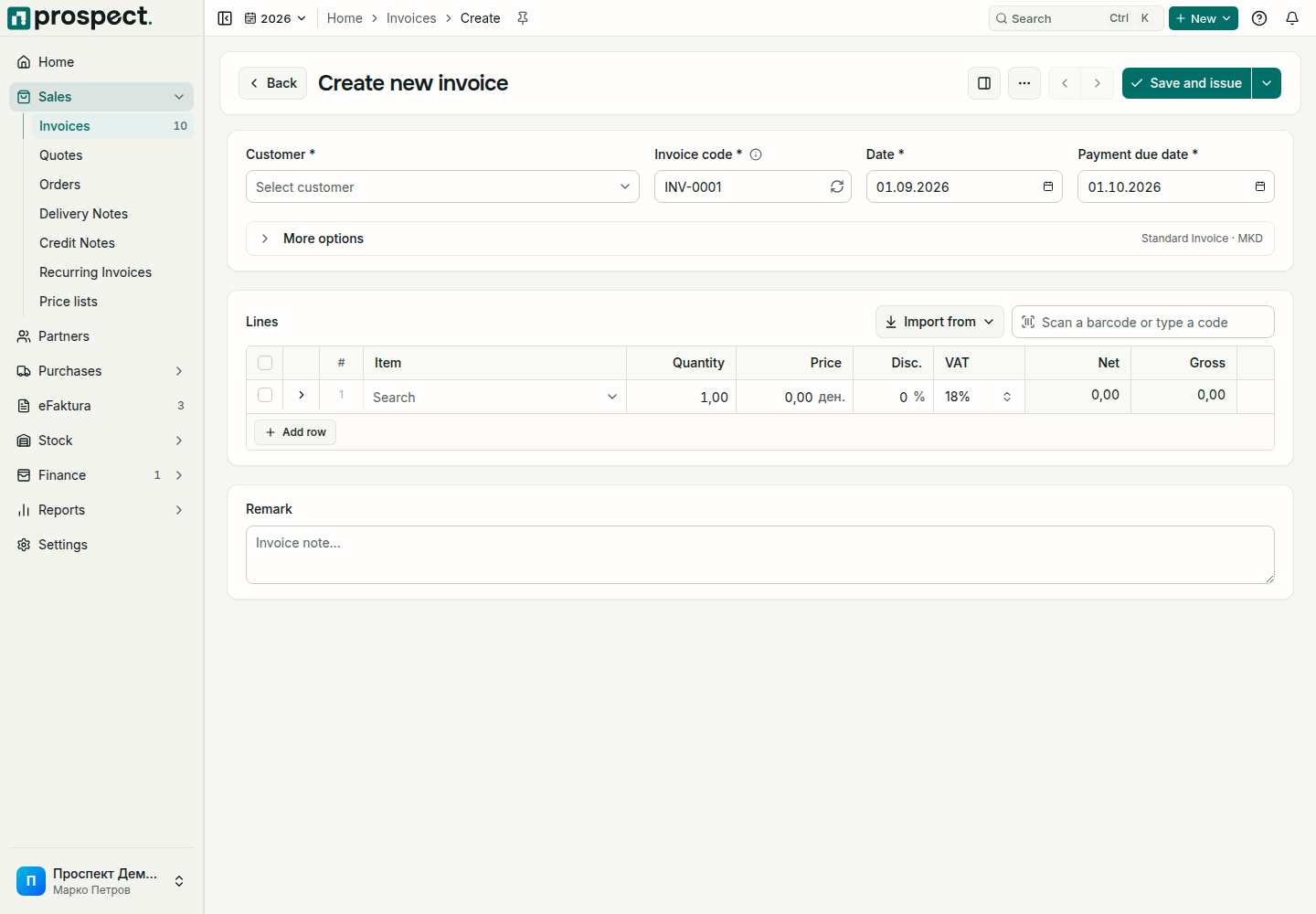
Open Sales → Invoices and choose Create, or choose + New in the header. To bill an order or a delivery, choose Generate invoice on that document instead; the customer and lines are filled in for you.
Select the Customer first. The Payment due date follows the customer's payment terms, or the company default, until you change it. Check the Invoice code and Date.
Open More options only when you need them. There you choose the type, Standard Invoice for goods and services, Proforma Invoice for a preliminary document with no financial effect, or Advance Invoice for a prepayment that is later deducted from the final invoice, and set another Currency, the Tax point date when it differs from the invoice date, Reverse charge (VAT), or a recurring schedule. The collapsed row shows the current type and currency.
Under Lines, choose an item in the first row and enter the quantity and price; Add row adds another. You can also scan a barcode or type a code in Scan a barcode or type a code, paste rows copied from a spreadsheet, pick from the items this customer bought recently, or bring lines in with Import from. A customer price list or default discount is applied to new lines.
Check and issue
Turn on the preview beside the form with the side-by-side button in the header, and compare number, dates, seller and buyer details, lines, VAT and total with what you agreed. The preview follows your edits as you type; Prospect remembers whether you keep it open.
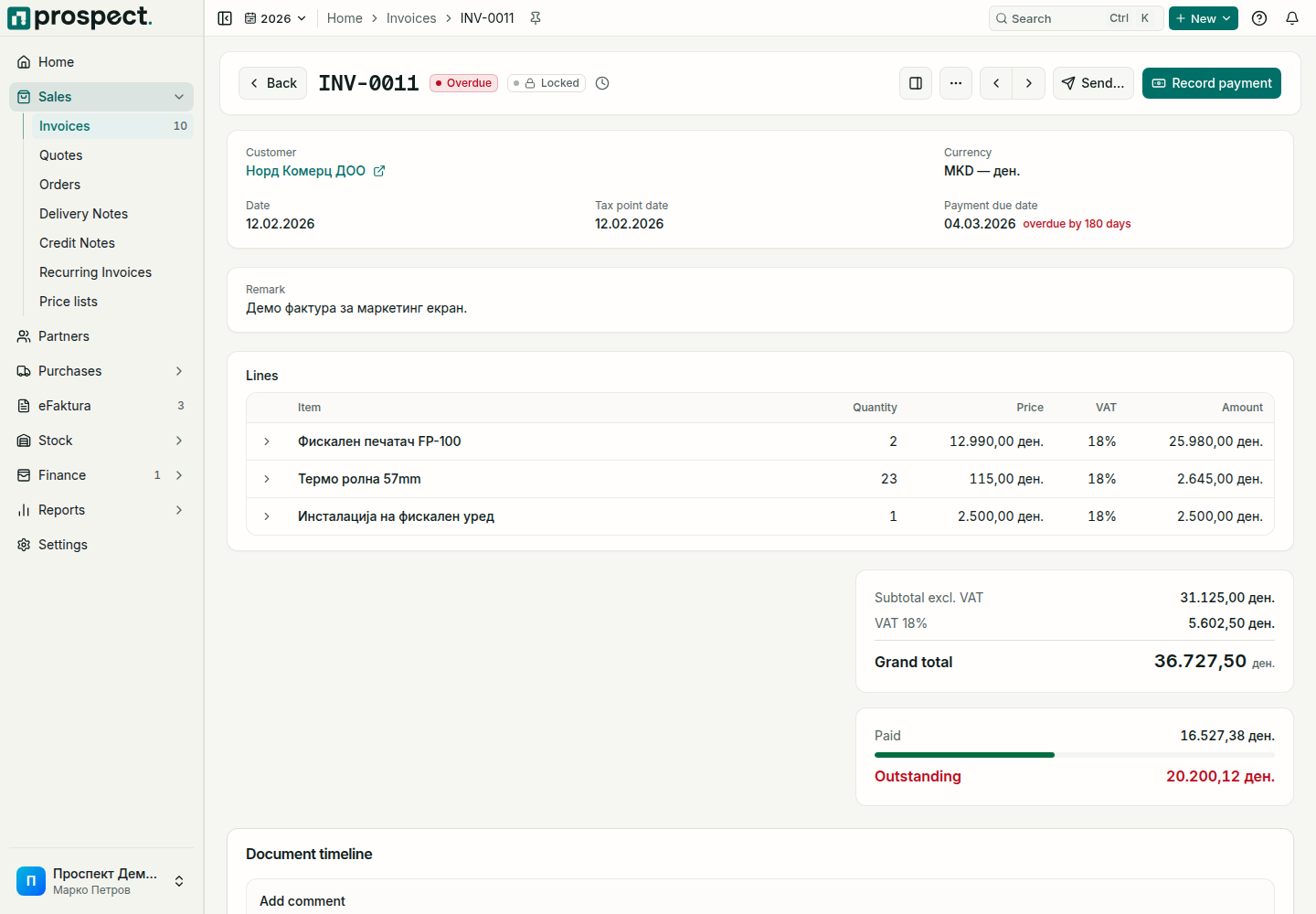
Choose Save and issue (or press Ctrl + Enter) and accept the confirmation question. The invoice gets its number and is Locked. To keep it as a draft instead, choose Save draft from the arrow beside the button, or press Ctrl + S. A saved draft shows Issue.
When eFaktura is the invoice's delivery channel, the button reads Save, sign and send instead, and issuing continues with signing; see Send outbound eFaktura.
If something stops the save, the form lists every problem at the top and takes you to the first one.
What issuing changes
| Area | Effect |
|---|---|
| Finance | A receivable appears in Open items for the invoice total. |
| Status | Unpaid, then Partially paid and Paid as payments are matched; Overdue after the due date. The list's Unpaid filter includes overdue invoices. |
| Stock | When the company invoices and delivers in one step (Invoicing mode in Settings → Workflow Policy), the delivery note and stock movement are created with the invoice. Otherwise stock moves with the delivery note. |
| eFaktura | When eFaktura is enabled, the invoice appears in the eFaktura workspace to be signed and sent. |
Common blockers
- No number can be assigned: no active Invoice series for that fiscal year.
- Credit limit exceeded: the customer's open balance plus this invoice is above the limit on the partner; an authorized user can override with a reason.
- Delivery or order required: your workflow policy requires a sales order, or a delivery note before invoicing stock items. When the policy asks for a reason for a direct sale, Add a reason asks for it once for the whole invoice.
- Locked period: the invoice date is in a locked fiscal year or a closed month.
Fix an issued invoice
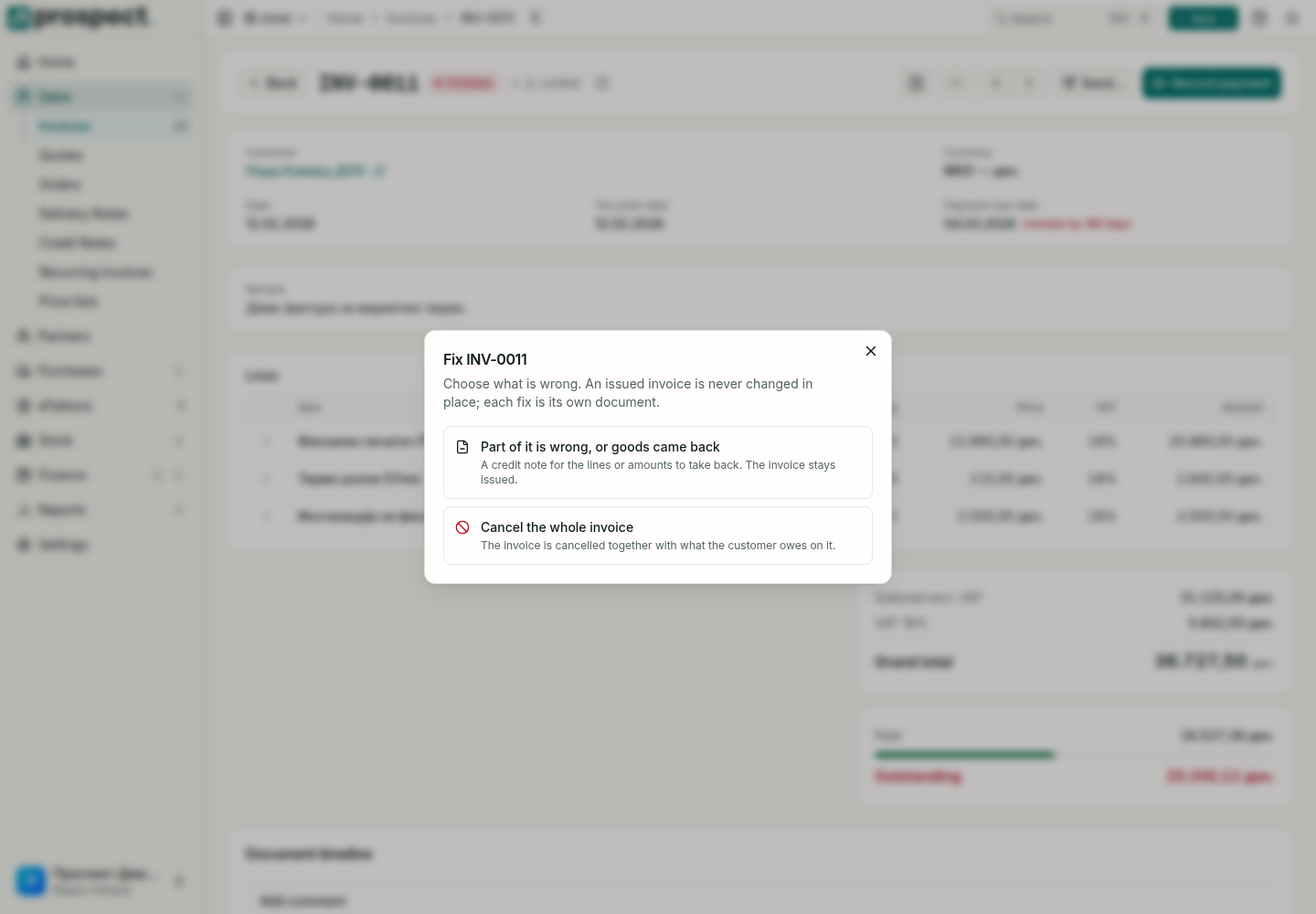
An issued invoice is never changed in place; each fix is its own document. Choose Fix this invoice… from the ⋯ menu and pick what is wrong:
| Choice | What it does |
|---|---|
| Part of it is wrong, or goods came back | Opens a credit note for the lines or amounts to take back. The invoice stays issued. |
| Replace it with a corrected invoice | For an invoice UJP has accepted: UJP links the corrected invoice to this one. |
| Cancel the whole invoice | Cancels the invoice together with what the customer owes on it. An invoice already at UJP gets a signed cancellation (storno). |
Next: Preview, download and email the invoice and Record the payment.